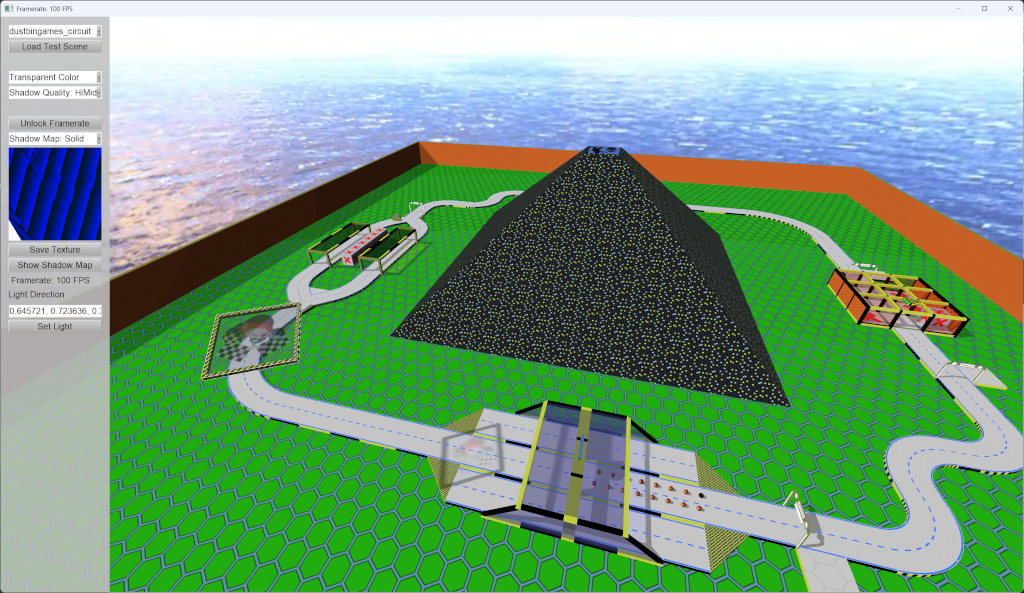
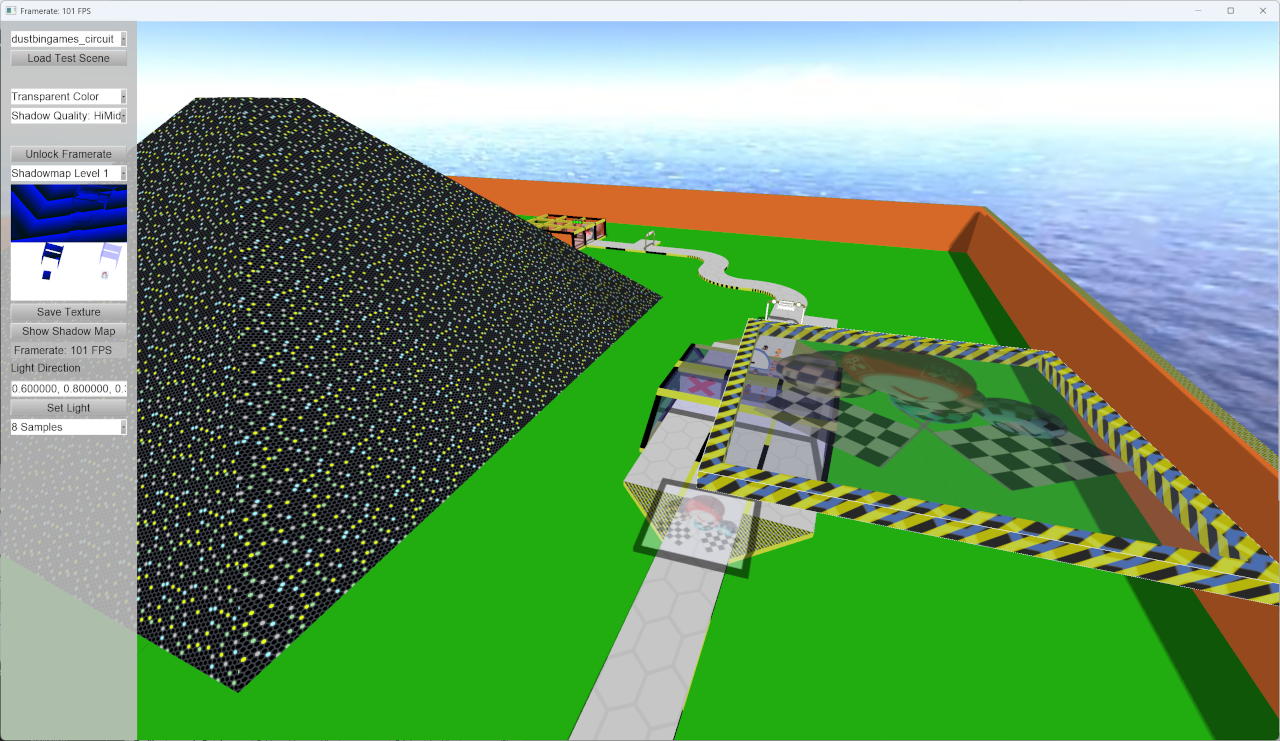
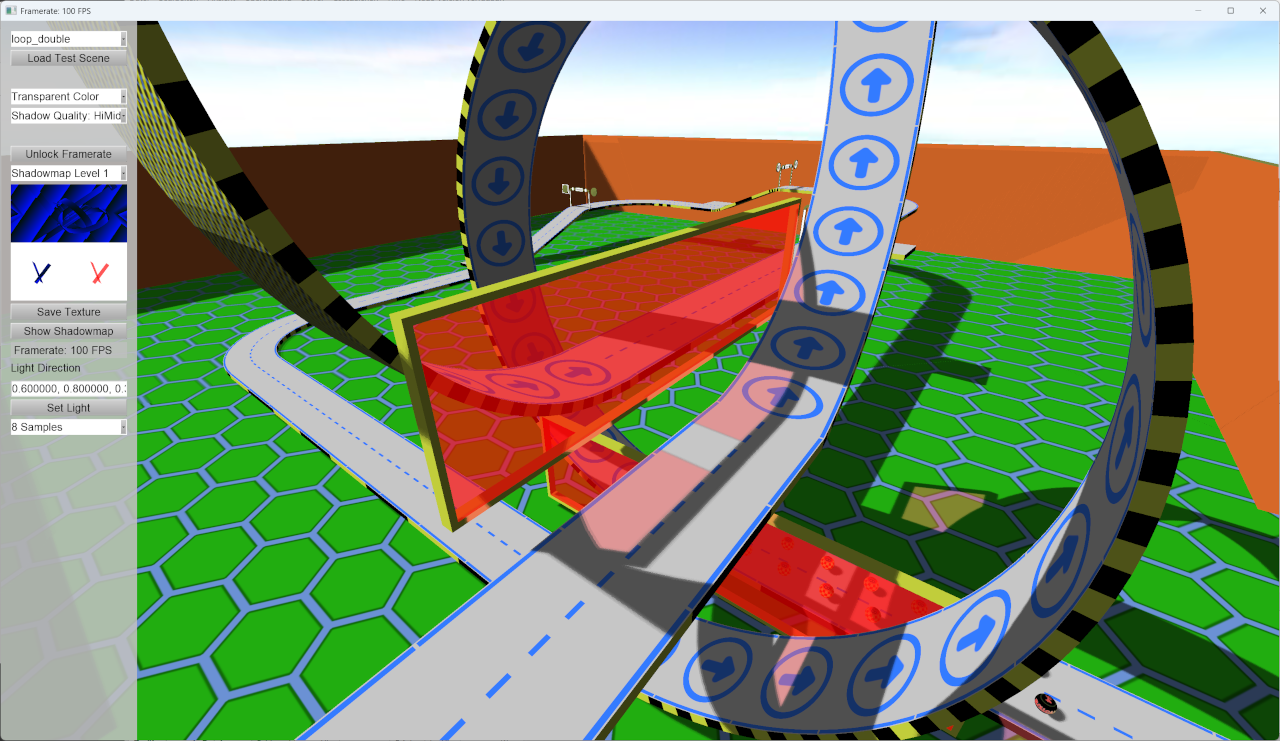
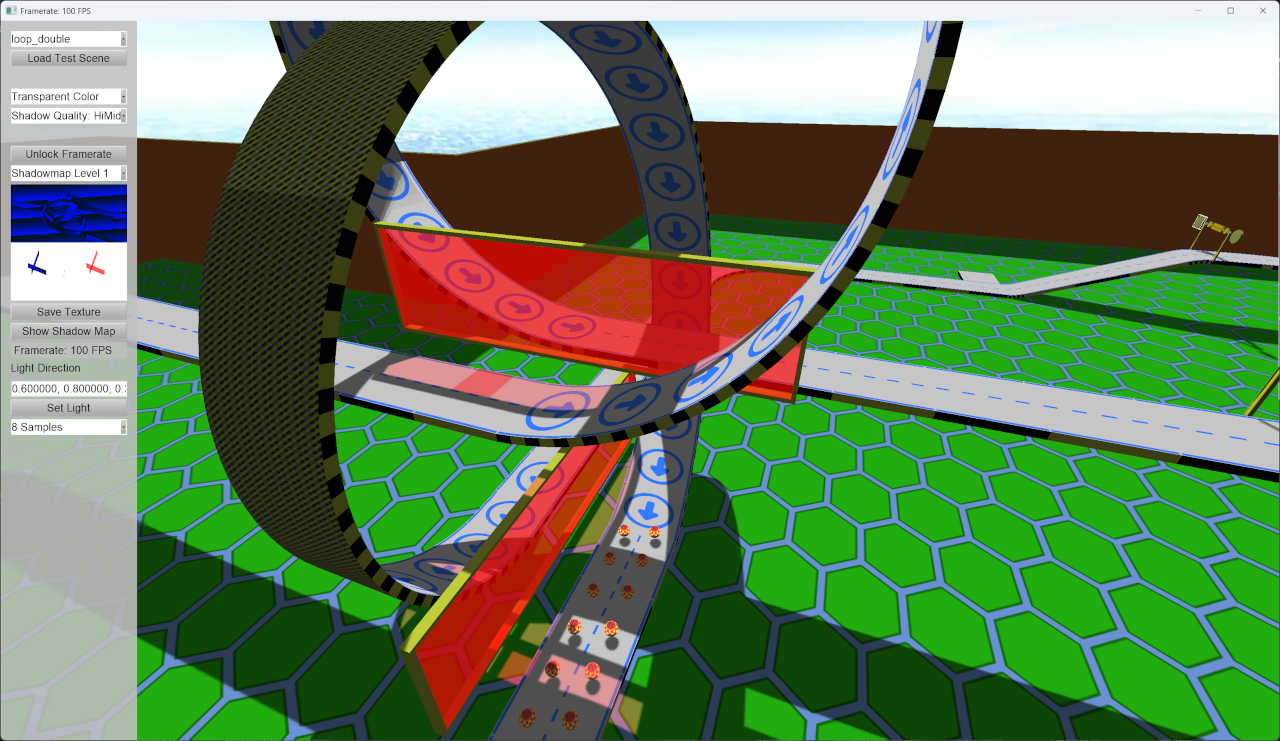
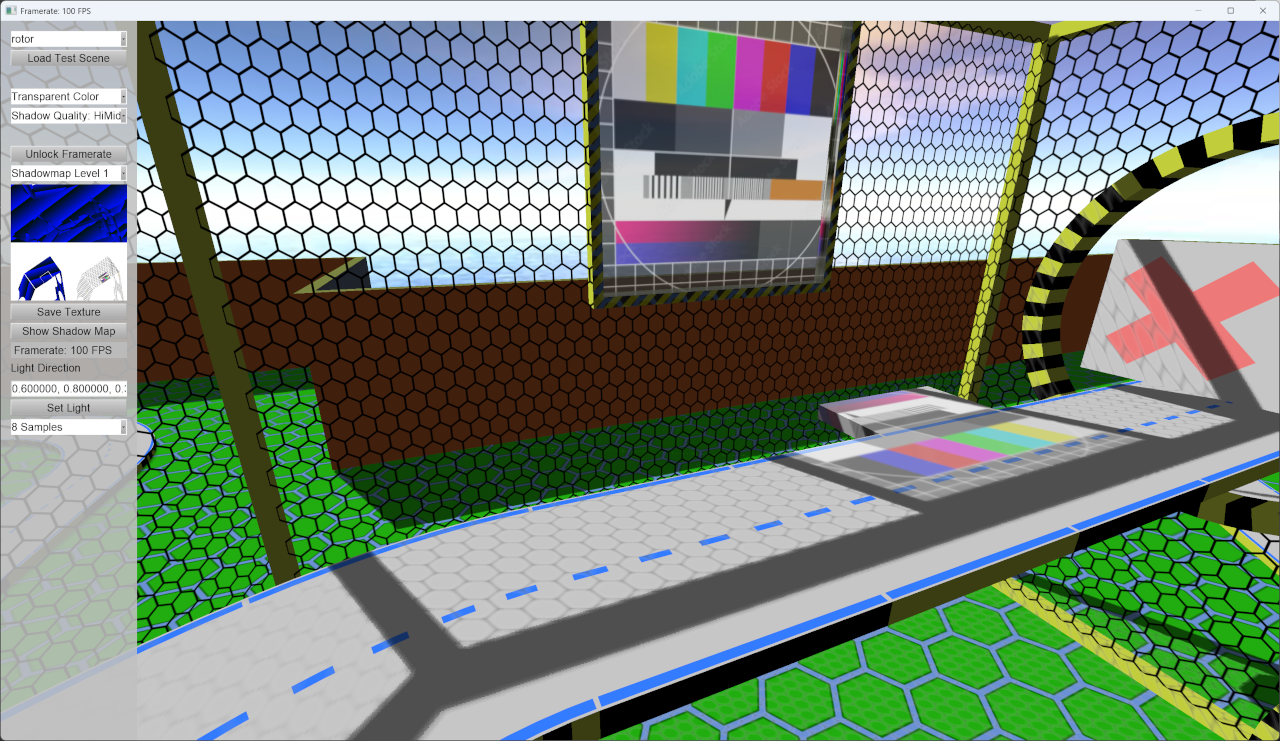
I have been fiddling around with creating a framework for future games (still work in progress, I hope I can show it off later this year), but I have now enhanced the shaders I use for MarbleGP and wanted to share it.
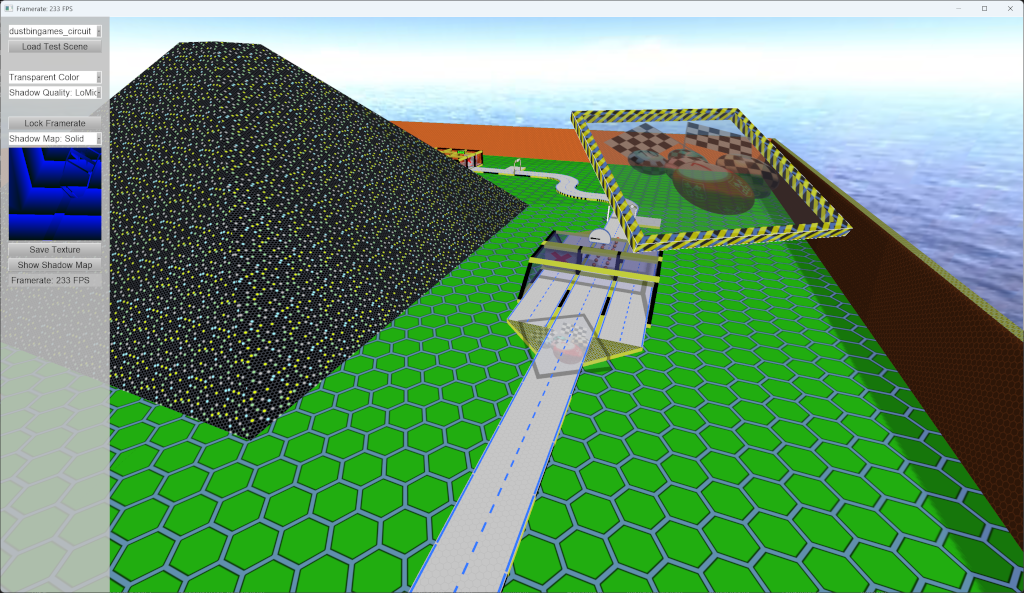
The shader now creates two shadows, one detailed which is close to the camera, and one rough for the object further away (there is one spot in the test scene where you can see that quite well). The shader does also support transparent shadows as seen in the image.
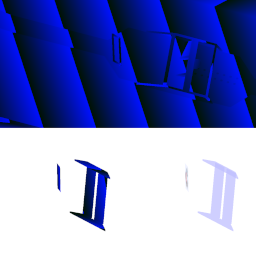
I render two sets of shadow maps (details / rough) with three maps each, i.e. six textures are used for rendering the shadow:
- a depth map for the solid shadow
- a depth map for the transparent shadow
- a color map for the colors of the transparent shadows
You can download my test application from https://forumdata.dustbin-online.de/DustbinShaders.zip
The project is available on https://sourceforge.net/projects/dustbinshader/
The project for the application is for Visual Studio 2026, and it needs some tweaking before it compiles (like path to the libs... / for the framework I'm going to switch to CMake), it uses Irrlicht trunk from a few months ago.
I hope you like it
Edit: some information on the left side menu for the test application / screenshot
- on top you have a dropdown where you can load test scenes. All except the default need to be updated though as three textures are used for the road, but now the shader needs 6 textures
- next is a button to load the selected scene. Note that the camera issue I mentioned above will show
- then you have a combobox which allows you to select the mode used (shadows with transparent shadow colors, shadows with single color transparent shadows, only solid shadows, off)
- below that you see another combobox which allows setting the quality of the shadows ("Top": 16384x16384, "High": 8192x8192, "HiMid": 4096x4096, "LoMid": 2048x2048, "Low": 1024x1024, "Poor": 512x512). I am quite happy with "LoMid" on my 4k display
- The "(un)lock Framerate" button let's you see how good the shaders perform. I have 200+ FPS on my Asus Rog Ally X with the "LoMid" settings
- The next combobox allows you to see the textures of the shadow maps
- Then there is a button which saves the currently selected RTT. Note that later saves will overwrite previous
- The "Show Shadow Map" button gives you a large view of the current shadow map
- last but not least you can see the current framerate (again)